
Configuration articles and guides for software and hardware. These settings are mandatory unless otherwise stated
PREPARE YOUR SYNTHESIZER FOR THE EDITOR
First, we need to Configure Waldorf Q so that it is ready to communicate with the software.
Connect the MIDI cables to the MIDI interface and Audio Jacks to your console / sound card. MIDI out from synth to MIDI interface IN and vice versa. No MIDI thru configurations does not work.
- MIDI Out from MIDI interface to Q MIDI In port.
- MIDI Out from Q to MIDI interface MIDI In port.
- double check your cables!
- Audio from Q Outputs to console or sound card inputs.
Wiring diagram example

Waldorf qXr Wiring Schematics
Power up your Q and put it into Multimode. Our editor is designed to work “out of the box” and control all parameters from single plug-in instance.
Configure Q
Enter Multimode [1] and press Utility [2] to start the configuration. Use wheel [3] to navigate the menu.
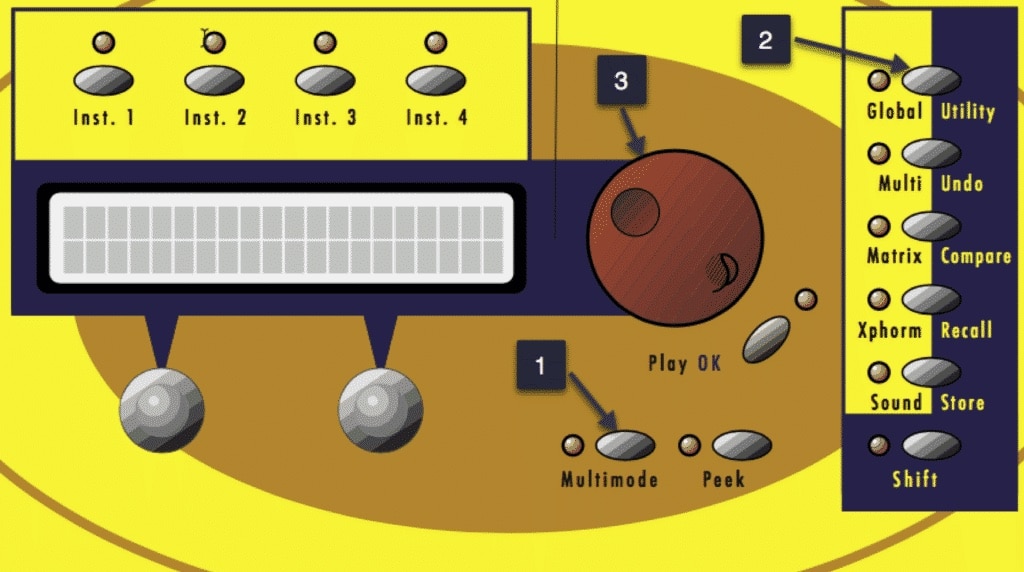
Waldorf Q Panel
External Clock Note: Arpeggiator will not play unless DAW is unable to provide MIDI Clock. Windows: Check our method of using MIDI OX and LoopBe together to provide MIDI clock from DAW to your synth.